1. Getting Started#
Lancaster University has a number of Unix systems. All of them are accessed via an internet connection from another system, such as your laptop or a computer on campus. Some of the Unix systems only provide a terminal, some of them provide GUI style applications, but only when accessed from another Unix system, and some provide a full virtual desktop for using both GUI based applications and/or a terminal. It is the latter type of systems that will be used in this course.
1.1. Accessing a Remote Unix Desktop#
From a browser follow this link to Lancaster University MyLab. You will be prompted for a LU username, password, and one time passcode. You will then be presented with something like the following.
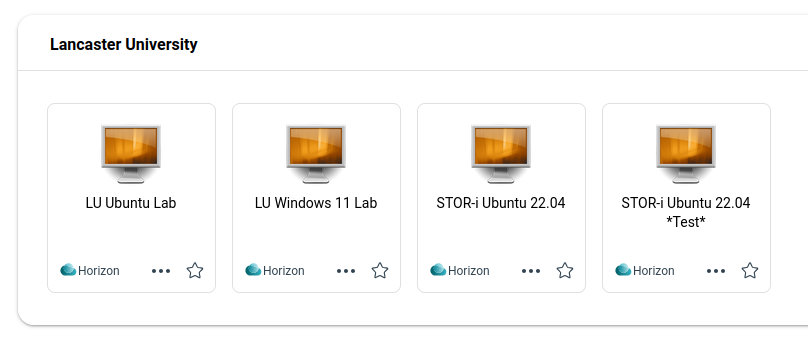
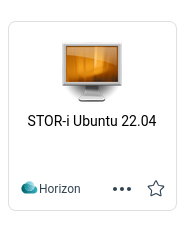
Now double click on the STOR-i Ubuntu 22.04 icon
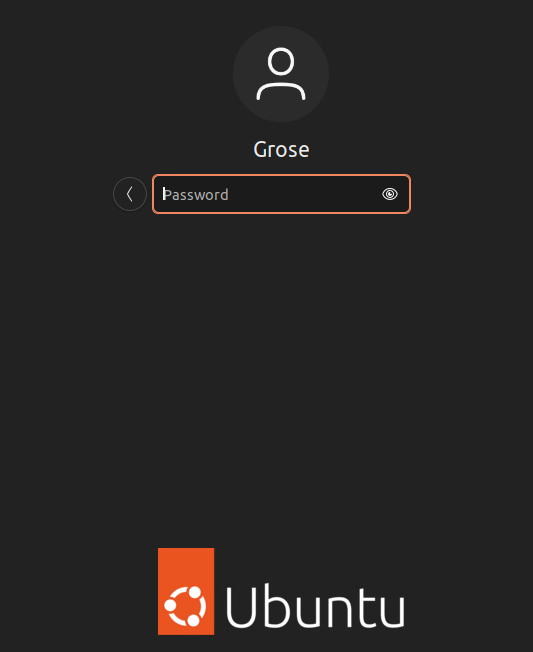
Provide your LU username and password when prompted.
1.2. Using the Desktop#
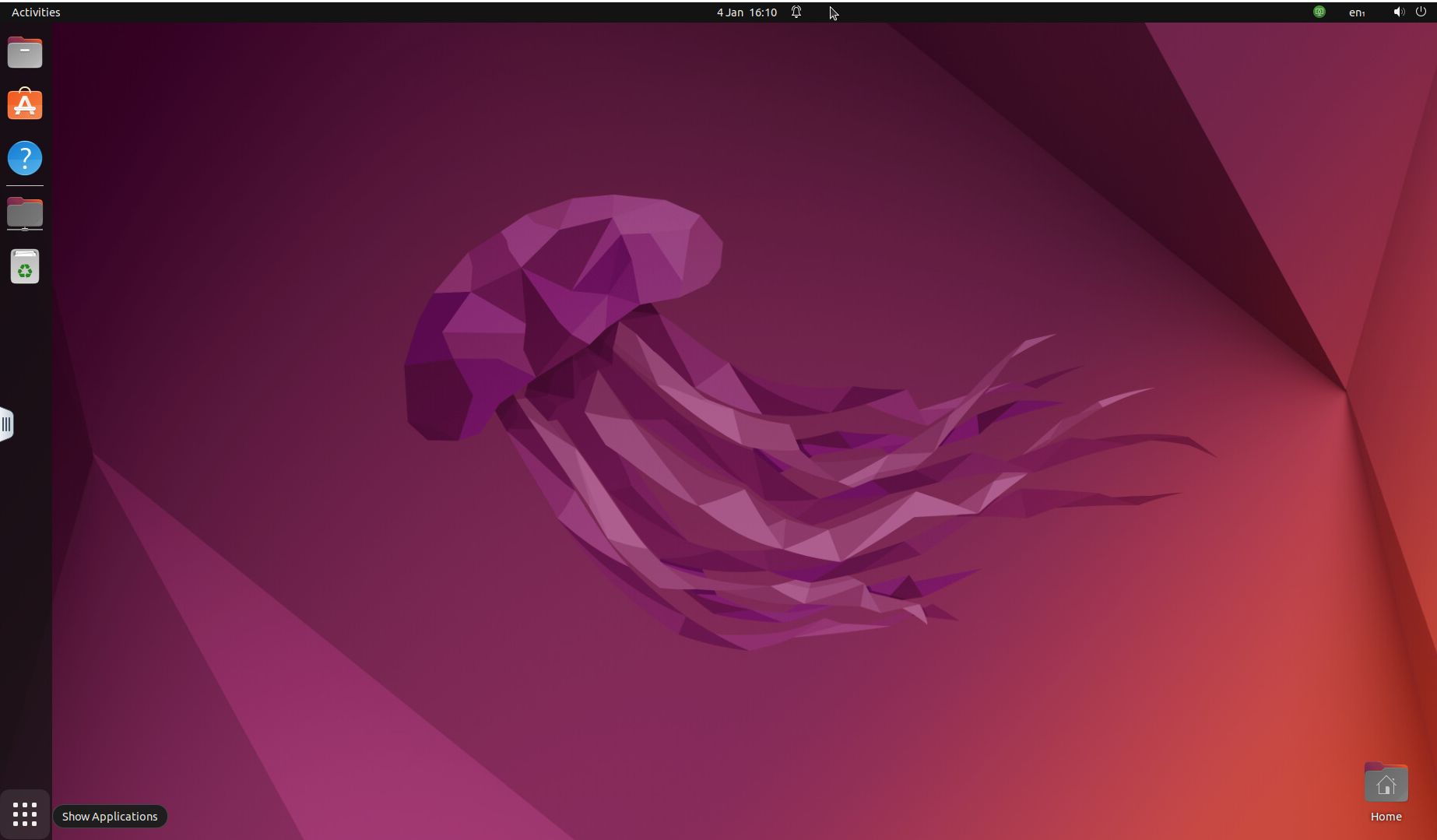
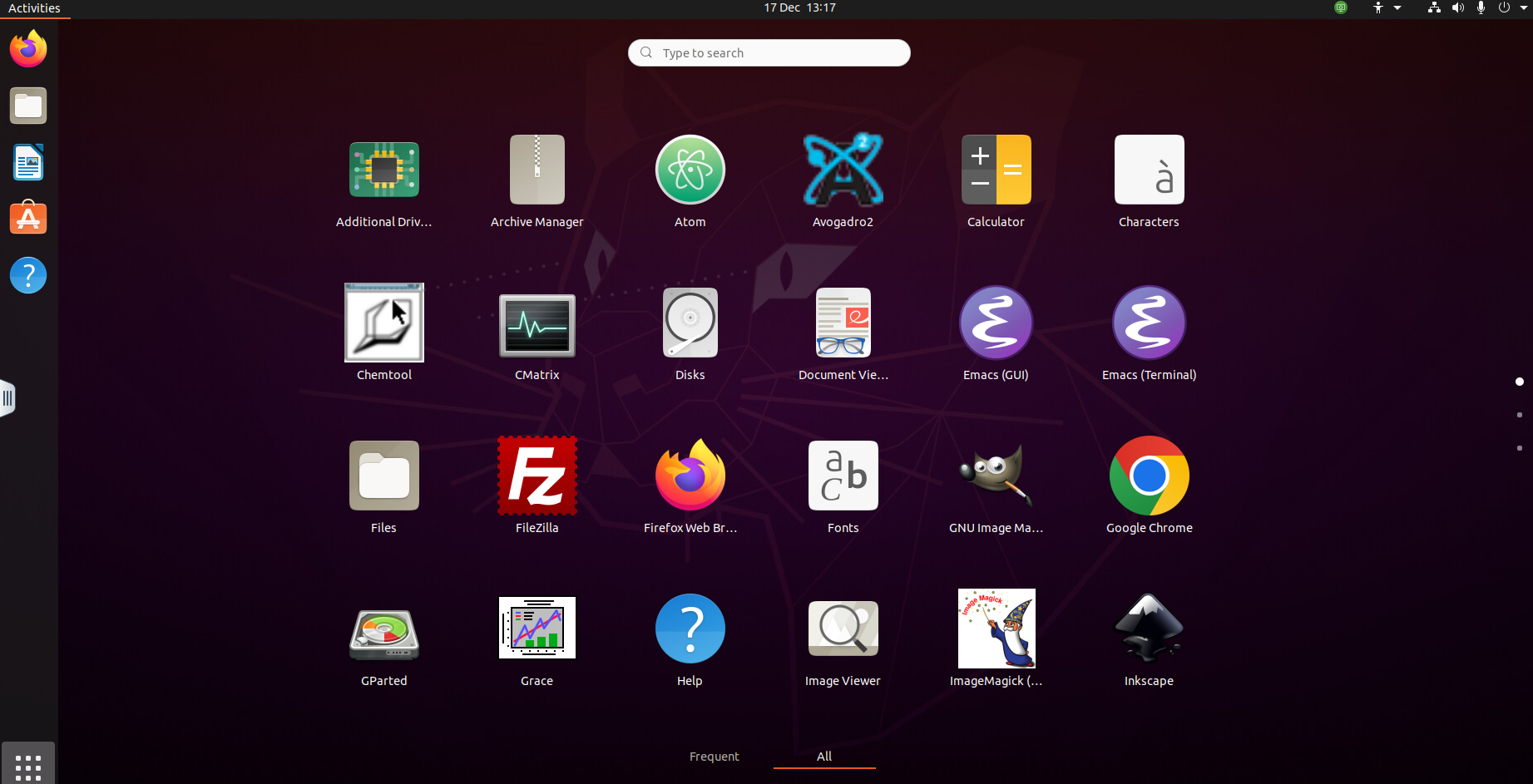
The Ubuntu desktop you are now using has a number of applications pre-installed. You can access many of them by using the “waffle” and selecting an app to start (or file to open etc). Note that the applications currently available on your account will be different from thos shown below.
1.2.1. Exercises#
Try and find and start a file manager from the desktop. Can you locate your LU h-drive ?
Can you share files between your client system and Ubuntu lab ?
Start a web browser and access these course notes.
1.3. Using a Unix terminal#
Start the app launcher (by clicking on the waffle) and type terminal in the search box.

Click on the
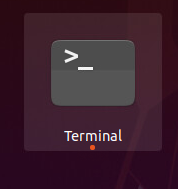
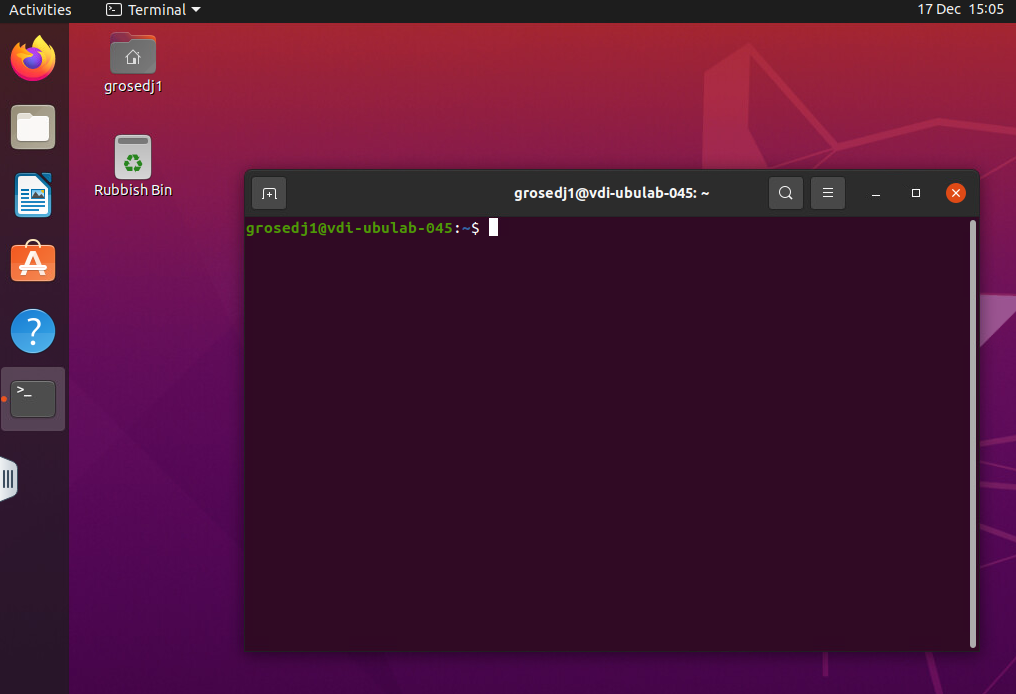
which should launch a Terminal in a new window.
1.3.1. Exercise#
Type whoami in the terminal and press return. What do you see ?
whoami
grosed
Congratulations - you have now been infected by the Unix virus - there is no known cure !!